Datasets on SharePoint
Here is the URL to our SharePoint site:
https://adminliveunc.sharepoint.com/sites/fpg/workspaces/educare/SitePages/Home.aspx
Please note: The first time you log in, it should ask you to sign up for dual authentication. So keep an eye out for a button or link for that, the first time you log in.
Important tip: Lots of our users have problems getting to our SharePoint, because even when you log in, Microsoft/Outlook tries to redirect you to your own organization’s SharePoint. So we recommend – every time you use our SharePoint, not just the first time – opening a different web browser when accessing our SharePoint. For example, if you usually use Chrome, maybe use Firefox to access our SharePoint.
To log in, when you click the URL above, it should take you to an Office 365 login screen. For the User Name, enter your Onyen user name, followed by @ad.unc.edu. And password will be your Onyen password.
Once logged in, you should see Educare Library Sync along the left hand side (if you do not see it, click the URL above again, after you have logged in). Educare Library Sync is where all your data and reports are. You should see an $AllSites folder, and a folder for your own site (the screen shot below shows what Atlanta would see).
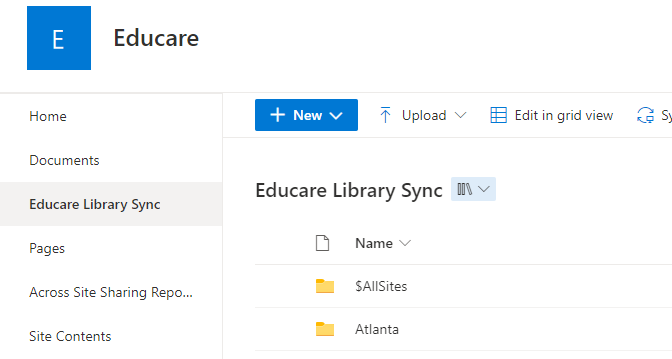
The $AllSites folder contains datasets with data from all the schools in our network (school names are anonymized in the datasets, so you do not know which data is from which school). The folder with your site name has the same datasets, but only with data from your school.
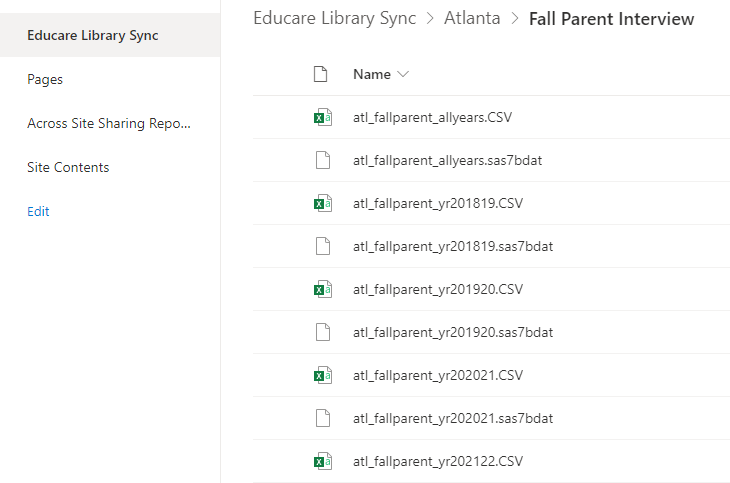
The folder names within the $AllSites and your site folders describe the different datasets.
Our processed datasets on SharePoint come in two file formats: CSV and SAS. SAS files can be opened by most other statistical software – such as SPSS – by just doing File | Open.
Some, but not all, of the datasets have an “allyears” version, and versions broken down by school year. So if you are doing analysis on data from a certain school year, you could use one of the school year datasets, instead of having to filter the allyears dataset.
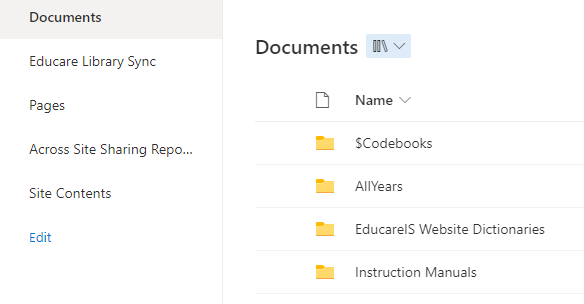
Besides Educare Library Sync, there is another important section in our SharePoint. Again along the left, look for the Documents section. Inside that, two important folders are the $Codebooks folder, and the EducareIS Website Dictionaries folder. The $Codebooks folder has all the codebooks that correspond to all the datasets in Educare Library Sync. The EducareIS Website Dictionaries folder has important data dictionaries for uploading data to our main EIS web site.