
Updating Staff in EIS
For staff surveys, all data are entered either through the FPG online survey site by the staff member filling out their survey or by a member of the National Evaluation team at FPG. For the staff member to get the correct survey type, their information must be updated by the LEP team in the EIS site.
In addition to making sure new staff are added to the EIS system, existing staff entries should have updated:
- Role: Please confirm the staff member’s role or job title. It’s best to confirm this information with the program.
- Status: 1=Fulltime, 2=Part-time, 3=On Leave, 4=Left Educare
- Survey type: which type of survey the staff member will receive (electronic, paper, or none)
- Email address: Please confirm the email address of staff member
These updates can be made one entry at a time, or by batch upload.
Individual entry updating
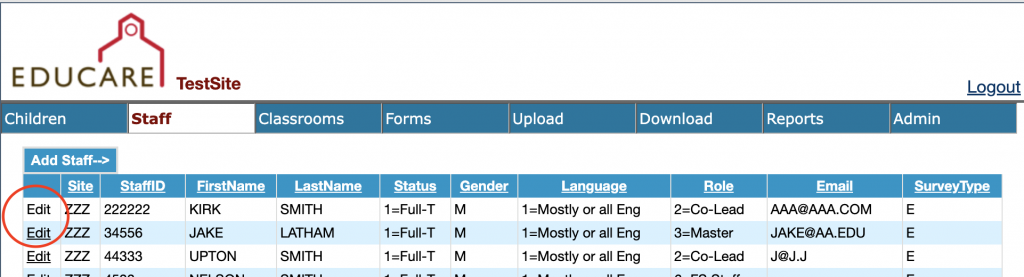
To update staff one entry at a time, click the staff tab at the top of the EIS page, then click the “Edit” button on the far left of the table for the staff member whose information you would like to update.
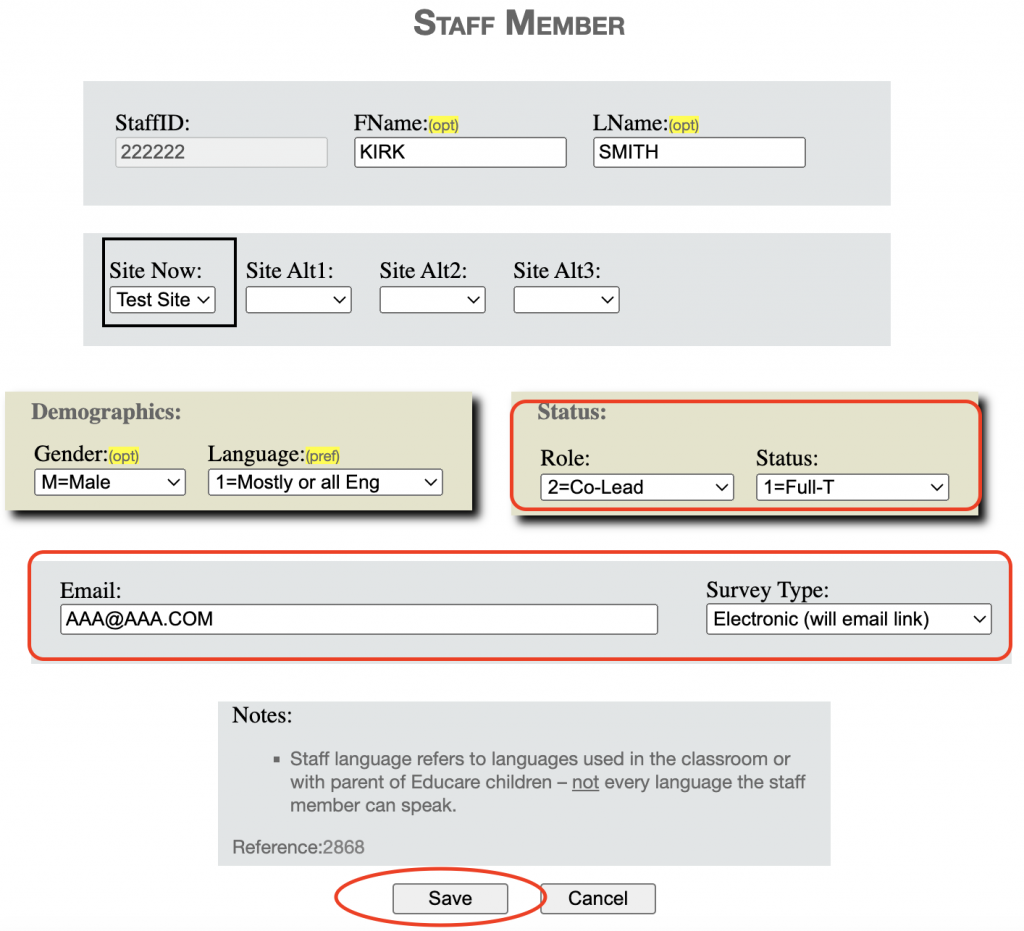
Please make sure to click Save at the bottom of the page to keep the updates you’ve made.
Batch entries updating
If you would like a list to update and reupload, please visit the EIS website, log in and click on the Download tab, choose Staff from the Select Measure drop-down, then click Request. This excel file can be used to update the staff information requested and then reuploaded to the system rather than editing individual staff within the web system as outlined above.
If you have any questions about this process, reach out to Keil Jones for assistance.