
General Procedures for Entering or Uploading Data
There are 2 methods by which data can be entered to the EIS website – manual or upload.
Method 1: Manually Entering Data
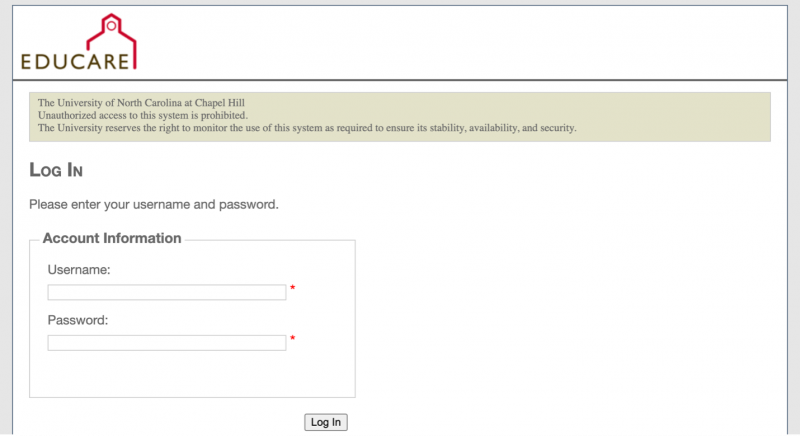
- Go to the EIS website and log in with your UNC ONYEN username and password
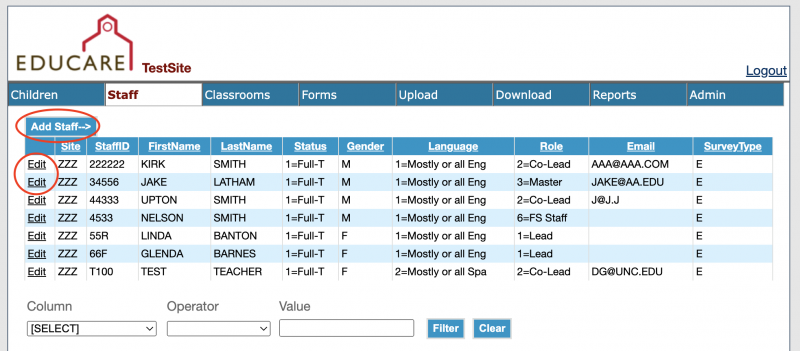
- Click on the tab that corresponds to the type of data you wish to enter. There are chapters of the National Evaluation Manual for each type of data – if you need more detailed information, please visit that specific chapter.

- To add new data, click the “add (data type)” button that appears above the table of previously entered data. To edit previously entered data, click the edit button beside the entry in the table
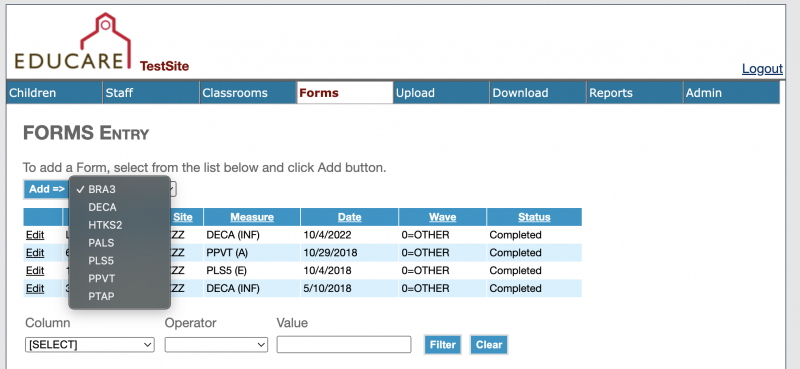
- On the Forms tab, which is for assessment and observation data, there is a drop-down menu to select which measure you are uploading
For the forms tab, there is a drop-down menu to select an assessment or observation measure.
Method 2: Uploading Data
- Go to the EIS website and log in with your UNC ONYEN username and password
- Click on the Upload tab, then click New Upload
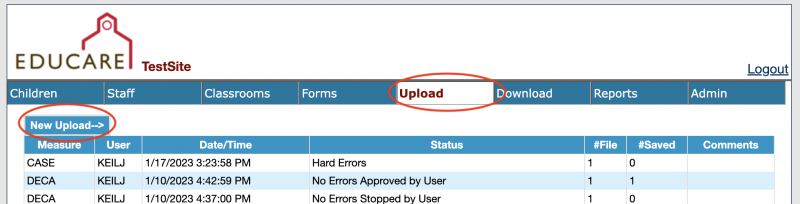
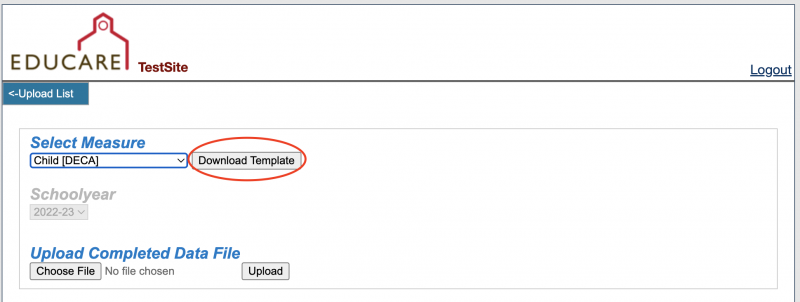
- On this page, there is a drop-down menu where you will select which type of data you wish to upload. Once you have selected the measure, click Download Template located next to the drop-down menu. This provides you with a template excel file which can filled out and uploaded when completed.
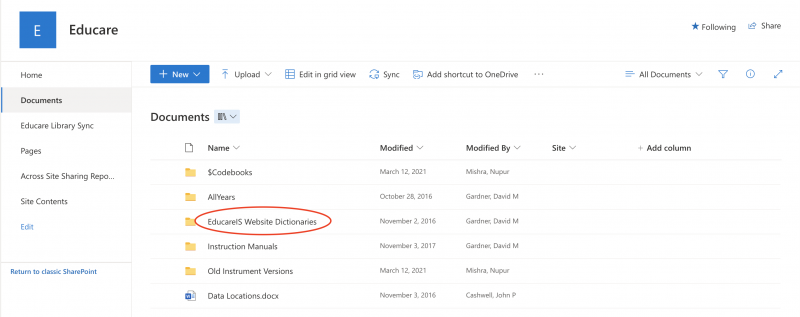
Data dictionaries for variables used in uploads (codes for gender, etc.) can be found in the documents section or FPG’s SharePoint. Data dictionaries are located in the Educareis Website Dictionaries folder.
When uploading the completed file, make sure that the school year drop-down menu has been set to the correct school year for the data you are uploading.