Chapter 9 – Classroom Observation Coversheet
The Classroom Observation Coversheet is completed for each classroom on the day the ITERS-3 or Pre-K CLASS observation is conducted.
The Classroom Observation Coversheet can be found under section C of the Study Tools and Forms page of the Team Member Dashboard.
Data Entry – Manual
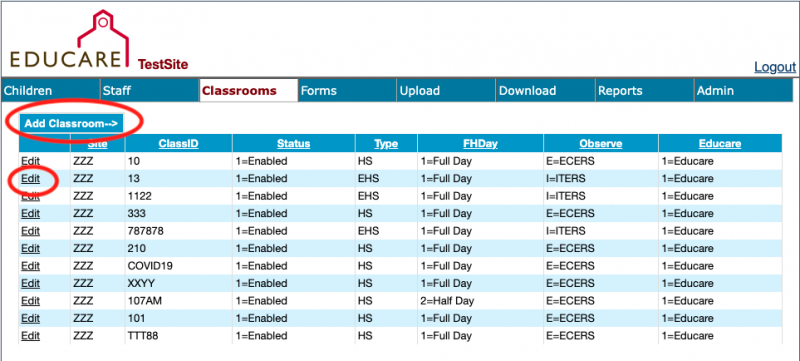
To enter the Classroom Coversheet data for one observation, click on the Classrooms tab of the EIS site. You can add a new classroom here, if needed, or edit a classroom that already exists.
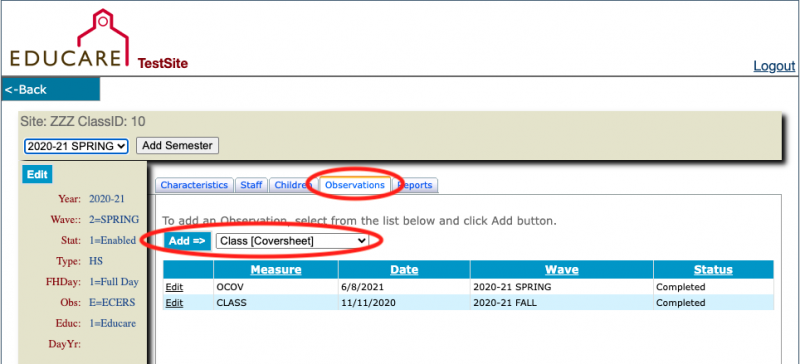
After adding a classroom or clicking the edit button, click the observations tab, select the Class [Coversheet] from the drop down menu, and then click the Add button.
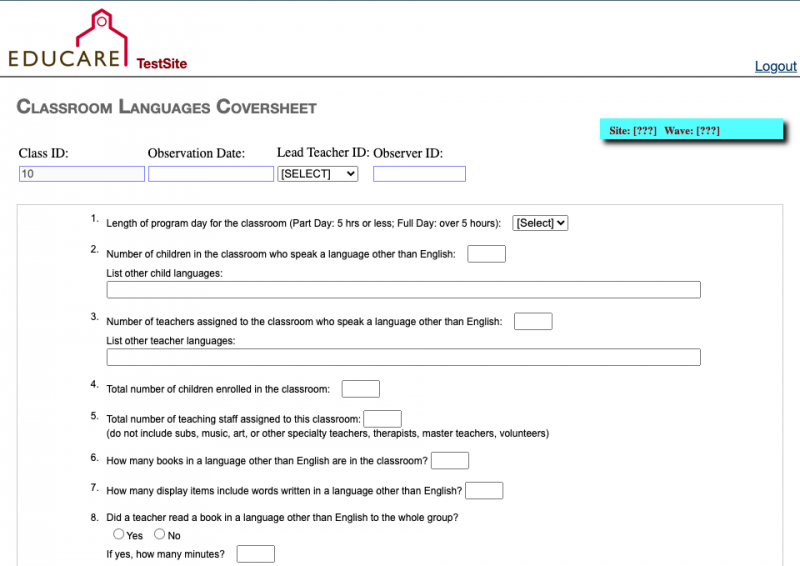
You will then be taken to a data entry screen like below where you can enter the Classroom Coversheet data. Make sure you click the Save button at the bottom of the page to save your entered data.
Data Entry – Upload
If you have a batch of coversheets to enter, you are able to upload a group of data together on the EIS site.
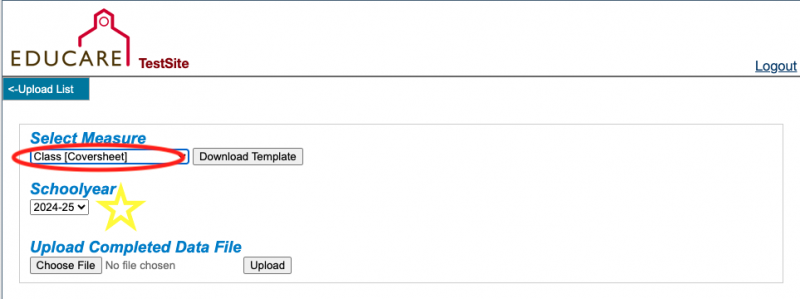
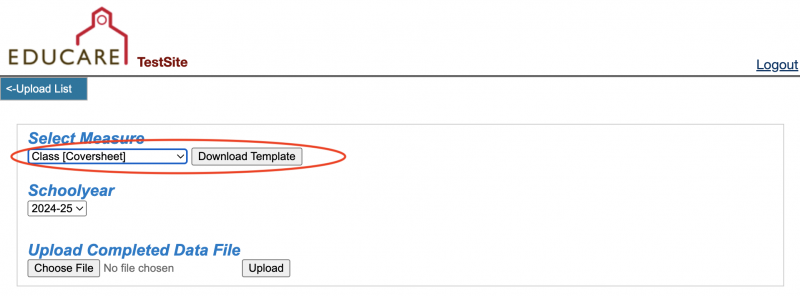
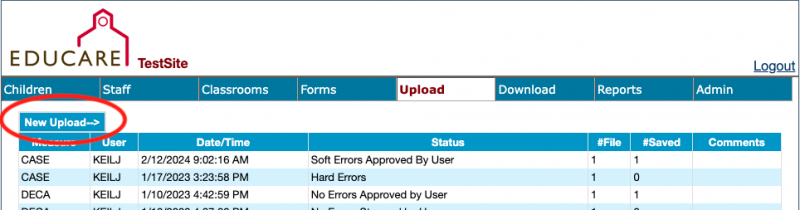
First, click on the Upload tab. Then click the New Upload button and select Class [Coversheet] from the drop down menu. Then click the Download Template button
Next, you will enter the data from your coversheets to the downloaded template excel file. Do not change any of the headers on the template.
To upload your data, click on the upload tab of the EIS site and then click the new upload button.
Finally, select the Class [Coversheet] from the measure list drop down menu and the correct school year from the school year drop down menu. Please double check that the school year is correct before selecting your file and clicking upload.