
Retrieving Data
There are two locations to access DECA data and reports.
SharePoint
- Summary reports prepared by FPG are shared on sharepoint annually.
They can be found using the following file path: Educare Library Sync > SiteName > YearRange > YearRange Final Reports OR YearRange Preliminary Reports
So, for example, Atlanta’s 2018-19 Child Assessment Report is located as follows: Educare Library Sync > Atlanta > 2018-2019 > 2018-19 Preliminary Reports
- Datasets are also shared or can be requested from FPG. They are shared to both individual sites and in the AllSites folder which includes network-wide data
Individual site data can be found using the following file path: Educare Library Sync > SiteName > AllYears > Analysis Extracted (MOST RECENT DATE)
For example, Atlanta’s 2018-19 Child Assessment data can be found at: Educare Library Sync > Atlanta > AllYears > Analysis Extracted 2020-03-11
If the data set is not in that folder, return to AllYears and select the second most recent data
Network-wide data can be found using the following file path: Educare Library Sync > $AllSites > AllYears > Analysis > Analysis Extracted (MOST RECENT DATE)
If the data set is not in that folder, return to AllYears and select the second most recent date
Reports via Survey site
There are several reports that can be run by visiting the Reports tab at https://survey.fpg.unc.edu/educareIS.
Log in with your UNC ONYEN and password.
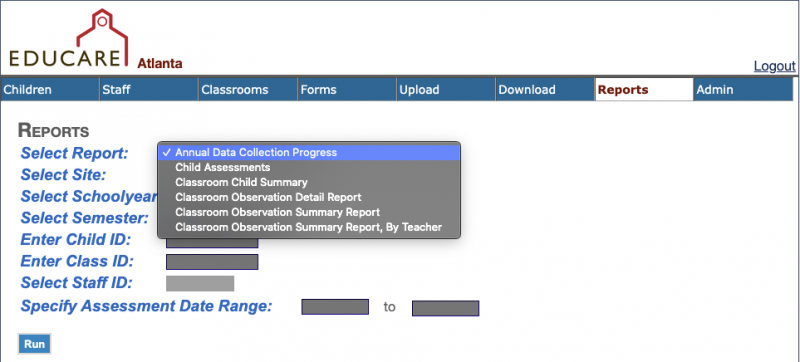
For the DECA, the relevant report options are listed below.
- Annual Data Collection Process
By selecting a school year from the dropdown menu, clicking run, and then download when the button appears, you will be able to see the number of submitted assessments for the PLS-5, PPVT-4, CLASS, DECA, and ITERS-3. This report also displays enrollment figures, the number of children who completed the program and are entering Kindergarten, and those who exited Educare for other reasons.
- Child Assessments
This report provides assessment dates and scores for the DECA, PPVT, and PLS for one individual child. You will be prompted to select a school year and enter a Child ID. Click run and download when the button appears.
- Classroom Child Summary
Running this report will provide DECA, PPVT, and PLS assessment scores for all the children in a specific classroom. Choose a school year from the dropdown menu and enter a Class ID. Click run and download when the button appears.